Data Administration
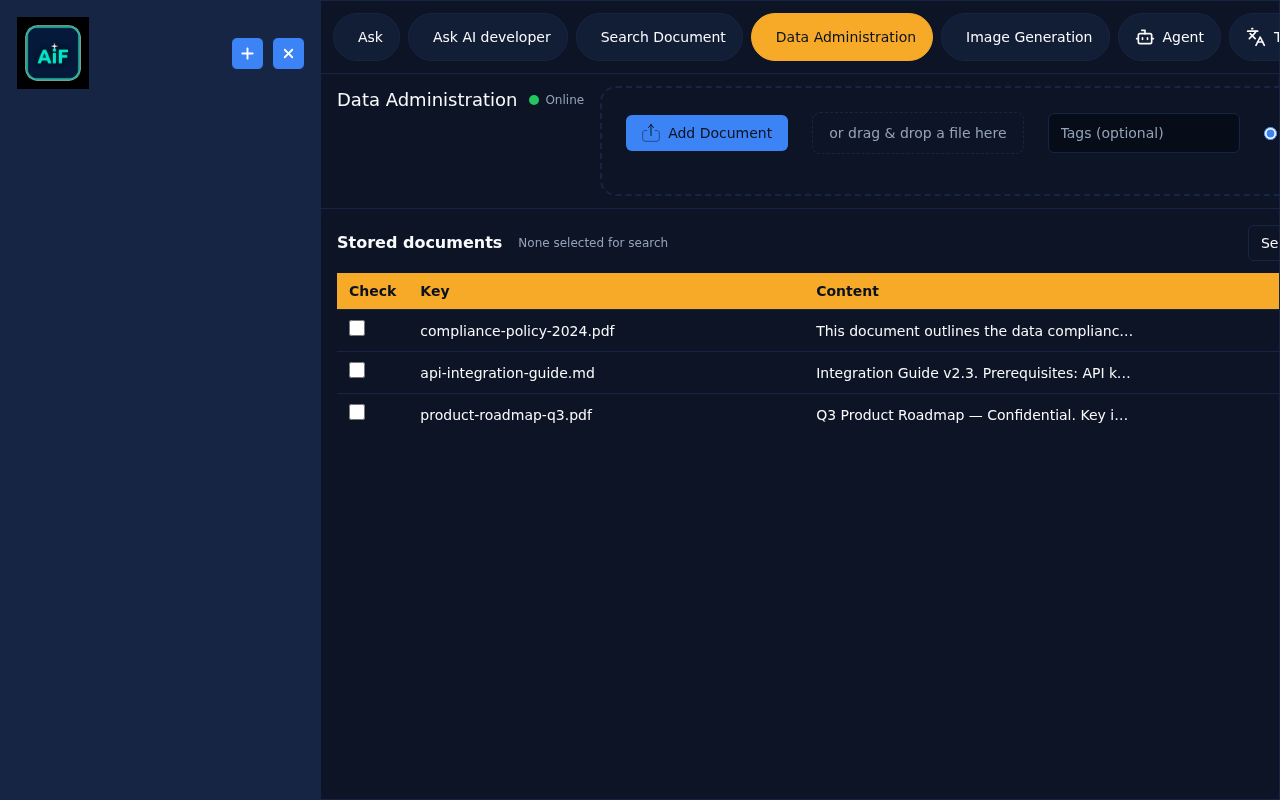
Data Administration allows you to manage which documents are included when querying with the Ask feature. This gives you fine-grained control over the AI's knowledge base for each query.
Purpose
When you have many documents in your library, you may want to:
- Focus queries on specific project documents
- Exclude outdated or irrelevant files
- Create document sets for different use cases
- Improve response relevance by narrowing scope
Accessing Data Administration
- Click the Data Administration tab in the navigation
- A table displays all documents in your vector store
Understanding the Interface
Document Table
The table shows three columns:
| Column | Description | |--------|-------------| | Checkbox | Select/deselect document for inclusion | | Key | Document identifier or filename | | Content | Preview of document content (truncated) |
Viewing Full Content
Document content is truncated in the table. To see more:
- Hover over any cell in the Content column
- A tooltip appears showing more of the document text
- Move your mouse away to close the tooltip
Managing Document Selection
Selecting Documents
- Click the checkbox next to documents you want to include
- Selected documents will be checked
- Your selection is automatically saved
Bulk Actions
Currently, documents must be selected or deselected individually:
- To select multiple documents: Check each document checkbox one by one
- To clear all selections: Uncheck each document individually
Selection Persistence
Your document selections are saved in your browser:
- Selections persist across page refreshes
- Selections persist across browser sessions
- Each browser maintains its own selections
Using Selections in Ask
After selecting documents in Data Administration:
- Go to the Ask tab
- In the header, find the view mode selector
- Choose Custom documents
- Your queries will now only search selected documents
View Modes Explained
| Mode | Behavior | |------|----------| | All documents | Searches entire document library (ignores selections) | | Custom documents | Searches only documents selected in Data Administration | | None | Disables document context entirely |
Use Cases
Project-Specific Queries
- Upload all project documentation
- In Data Administration, select only current project files
- Use "Custom documents" mode in Ask
- Queries focus on relevant project content
Excluding Outdated Content
- Review documents in Data Administration
- Uncheck outdated or deprecated files
- Use "Custom documents" mode
- AI won't reference excluded content
Creating Document Sets
You can organize documents into logical sets for different purposes:
- Technical documentation — API docs, architecture guides, technical specs
- Policy documents — Compliance, security policies, standards
- Project specifications — Requirements, project plans, design docs
- Meeting notes — Minutes, action items, decision records
Select and activate the appropriate document set based on your current task or query focus.
Tips
- Review periodically — Check selections when adding new documents
- Use content preview — Hover to verify document content before selecting
- Remember view mode — Selections only apply in "Custom documents" mode
- Clear for broad searches — Use "All documents" when you need comprehensive results
Technology: Data Administration fetches document metadata from the /vector/records endpoint, which returns all entries in the PostgreSQL pgvector table. Selections are stored client-side using Zustand with localStorage persistence. When Ask is used with "Custom documents" mode, selected document keys are sent as a filter list to the /ask/doc endpoint, limiting the vector similarity search to those documents.