Image Generation
The Image Generation feature allows you to create images from text descriptions and extend existing images using AI. This feature requires a ComfyUI server connected to your KeepUrAi backend.
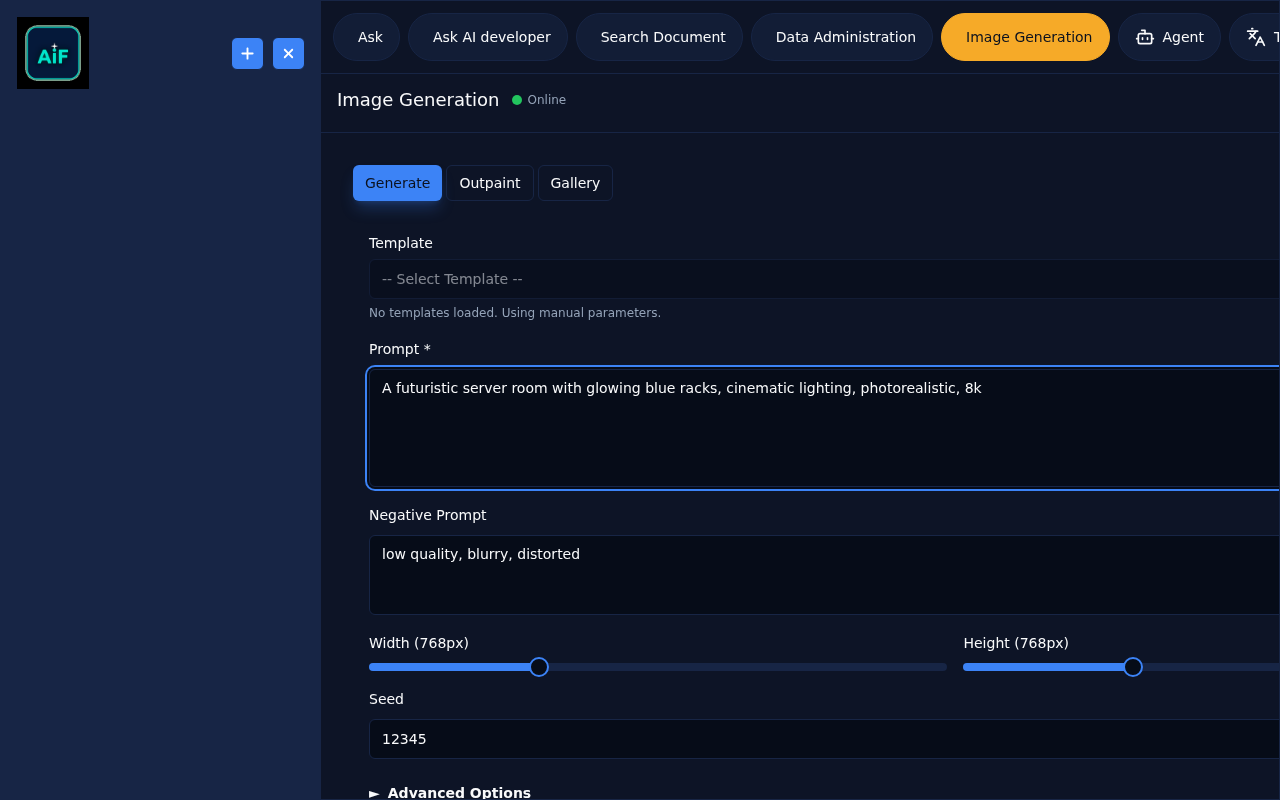
Two Modes of Operation
Generate Mode
Create new images from text descriptions (text-to-image).
Outpaint Mode
Extend existing images by describing what should appear in the expanded areas.
Generate Mode
Basic Usage
- Select Generate mode (default)
- Enter a description of the image you want in the Prompt field
- Optionally add a Negative Prompt for elements to avoid
- Click Generate
- Monitor progress in the gallery below
Prompt Writing Tips
Good prompts include:
- Subject description ("a mountain landscape")
- Style hints ("photorealistic", "oil painting", "digital art")
- Lighting ("golden hour", "dramatic lighting")
- Composition ("wide angle", "close-up portrait")
Negative prompts exclude:
- Quality issues ("blurry", "low quality", "distorted")
- Unwanted elements ("text", "watermark", "extra limbs")
Presets
Quick presets are available:
| Preset | Resolution | Steps | Use Case | |--------|------------|-------|----------| | Quick | 512×512 | 20 | Fast previews and testing | | Quality | 1024×1024 | 50 | Final high-quality images |
Advanced Parameters
Expand the advanced section to customize:
| Parameter | Description | Default | |-----------|-------------|---------| | Width/Height | Image dimensions in pixels | 768×768 | | Steps | More steps = more detail, slower generation | 30 | | CFG | How closely to follow the prompt (higher = stricter) | 7.5 | | Seed | Random seed for reproducibility | Random | | Sampler | Algorithm for image generation | euler | | Scheduler | Noise schedule type | normal | | Batch Size | Number of images to generate | 1 | | Denoise | Denoising strength (1.0 = full generation) | 1.0 |
Text Generator
Enable the Text Generator toggle when your prompt requires detailed text elements in the generated image. This activates specialized processing for improved text rendering quality.
Outpaint Mode
Outpainting extends an existing image by generating new content around its borders.
Basic Usage
- Select Outpaint mode
- Choose a source image:
- Click an image from your gallery, OR
- Click Upload New Image and select a file
- Enter a Scene Description for the extended areas
- Adjust Padding values (pixels to extend in each direction)
- Click Generate
Padding Controls
| Direction | Description | |-----------|-------------| | Top | Pixels to add above the image | | Right | Pixels to add to the right | | Bottom | Pixels to add below | | Left | Pixels to add to the left |
Default values extend the image significantly in all directions.
Scene Description
Describe what should appear in the newly generated areas. Examples:
- "Continue the forest with more trees and a path"
- "Extend the sky with clouds and birds"
- "Add a cityscape in the background"
Be specific about style and elements to ensure consistency with the original image.
Image Gallery
The gallery shows all your generated images:
Gallery Features
- Images sorted by generation time (newest first)
- Status indicators show generation progress
- Click any image to view full size
- Delete unwanted generations
Status Indicators
| Status | Meaning | |--------|---------| | QUEUED | Waiting in generation queue | | EXECUTING | Currently being generated | | COMPLETED | Generation finished successfully | | FAILED | Generation encountered an error |
Queue Position
When multiple generations are queued, you'll see your position (e.g., "3rd in queue").
Session Management
- Click + to start a new image session
- Previous sessions accessible from sidebar
- Each session maintains its own image history
System Health
The interface shows ComfyUI server status:
- Green — Server online and ready
- Red — Server offline or unreachable
If the server is offline, generation requests will fail.
Tips for Best Results
For Generate Mode
- Start with simple prompts, then add detail
- Use negative prompts to avoid common issues
- Experiment with different samplers for varied styles
- Save seeds of images you like for variations
For Outpaint Mode
- Choose source images with clear edges
- Match the scene description to the image style
- Use smaller padding values for subtle extensions
- Larger padding values create more dramatic expansions
Troubleshooting
| Issue | Solution | |-------|----------| | Generation stuck | Check ComfyUI server status | | Poor quality | Increase steps, adjust CFG | | Doesn't match prompt | Increase CFG, simplify prompt | | Outpaint looks wrong | Adjust scene description to match source style |
Technology: Image Generation integrates with ComfyUI via the KeepUrAi backend. Generation requests are sent to /image/prompt (text-to-image) or /image/outpaint (outpainting). The backend translates requests into ComfyUI workflow format and manages the generation queue. Status is polled via /image/status/{promptId} every 2.5 seconds. Generated images are stored temporarily on the server and fetched as needed. The feature supports various Stable Diffusion checkpoints and samplers configured on the ComfyUI server.