Search Document
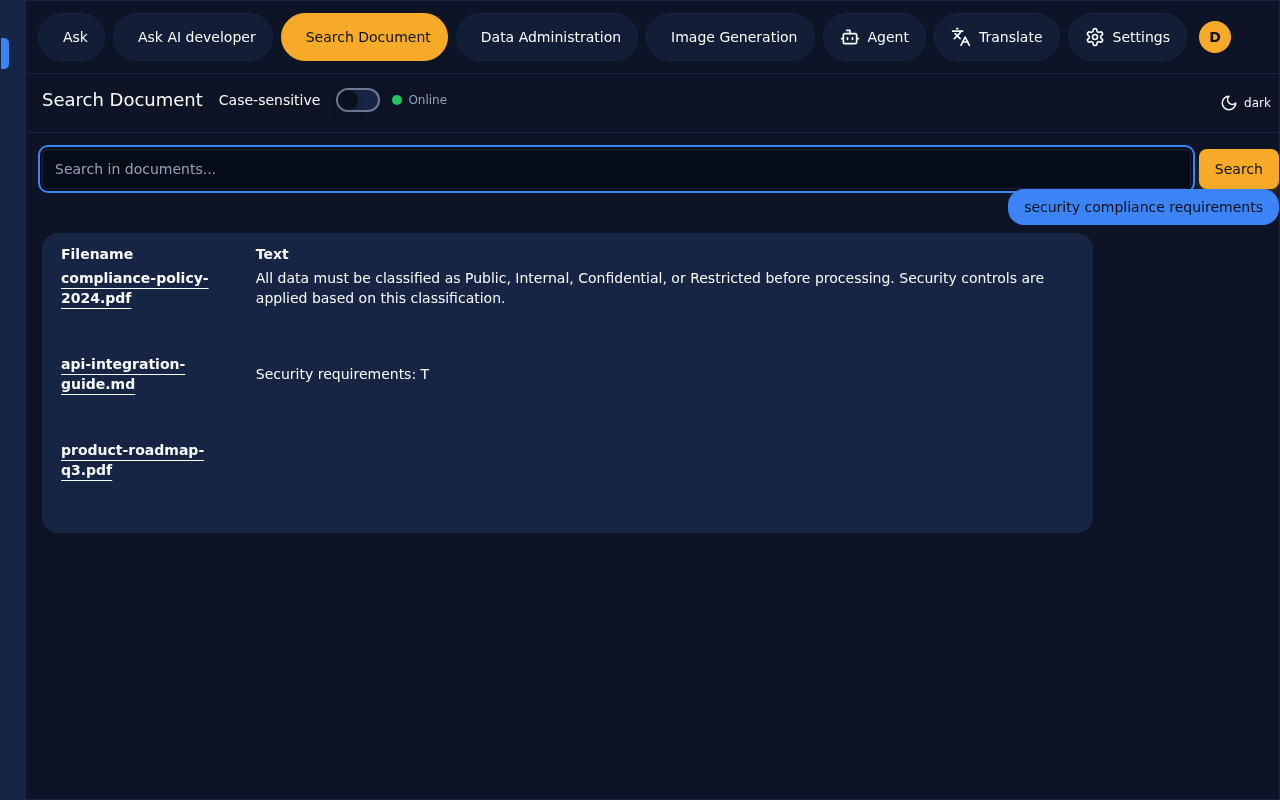
The Search Document feature provides direct full-text search across your uploaded documents. Unlike the AI-powered Ask feature, this performs literal text matching without interpretation.
When to Use
Use Search Document when you need to:
- Find exact phrases or terms in your documents
- Locate specific files containing certain keywords
- Verify if particular content exists in your library
- Download documents based on their content
How It Works
Search Document performs database-level text matching:
- Your search term is matched against all document content
- Documents containing the term are returned
- Results show the matching text and source filename
- You can download any matched document directly
Using the Feature
Basic Search
- Click the Search Document tab
- Enter your search term in the input field
- Press Enter or click the search button
- View results in the table below
Search Results
Results are displayed in a table with two columns:
| Column | Description | |--------|-------------| | Filename | The source document (click to download) | | Text | The matching text excerpt |
Downloading Documents
To download a document from the search results:
- Click on the filename in the results table, or
- Click the download icon next to the entry
The file will be downloaded to your device's default download location.
Case Sensitivity
By default, searches are case-insensitive. To enable case-sensitive matching:
- Locate the Case-sensitive checkbox in the header
- Check the box to enable exact case matching
- Perform your search
Examples
| Search Term | Case-Sensitive OFF | Case-Sensitive ON | |-------------|-------------------|-------------------| | "api" | Matches "API", "api", "Api" | Matches only "api" | | "Configuration" | Matches any case variation | Matches only "Configuration" |
Search Tips
- Use specific terms — Narrow results with unique keywords
- Try variations — Search for different forms of a word
- Check case sensitivity — Toggle if you need exact matching
- Combine with Data Admin — Note which documents contain what content
Comparison with Ask
| Feature | Search Document | Ask | |---------|----------------|-----| | Search type | Literal text matching | Semantic understanding | | Results | Exact matches with excerpts | AI-generated answers | | Use case | Finding specific content | Understanding content | | Speed | Very fast | Depends on AI processing |
Session History
Your search history is automatically preserved for future reference:
- Previous searches appear in the left sidebar
- Click any past search to re-run it instantly
- Results are cached for quick access and comparison
Technology: Search Document uses PostgreSQL full-text search capabilities via the /database/textsearch endpoint. The search is performed directly on stored document text without vector embeddings or AI processing. The case-sensitivity option maps to database-level matching modes. Document downloads are served through the /files/download/{filename} endpoint.